What this does
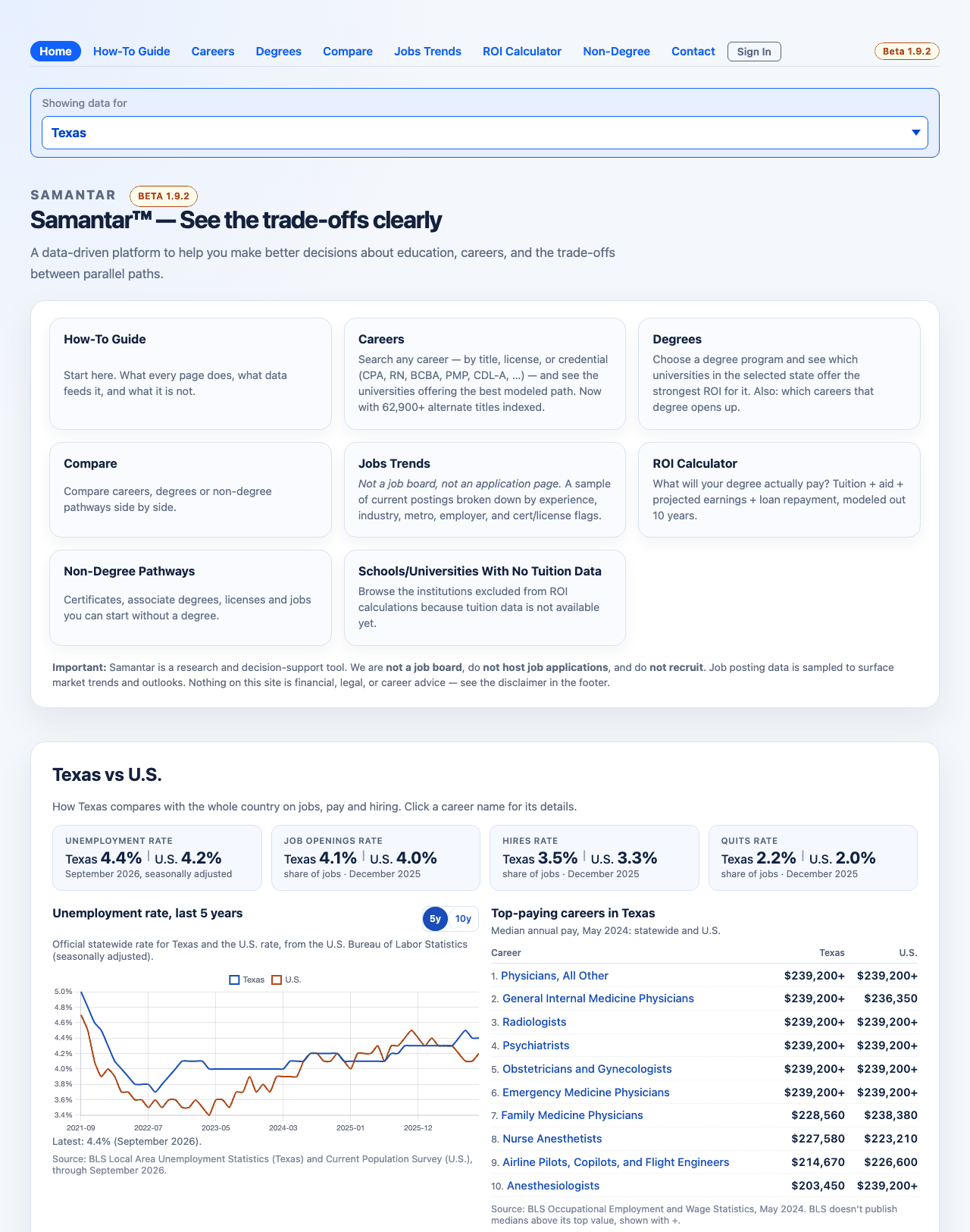
Samantar shows schools, careers and pay one state at a time. The menu labelled Showing data for is where you choose that state. It is the only state menu on the site. You choose once, and the site keeps your choice as you move from page to page, until you change it.
The list offers United States and then all 50 states and the District of Columbia, in alphabetical order. United States is a national view used on the home page; the pages about schools, degrees and careers need a single state.
This helps anyone who wants figures for the place that matters to them: a student comparing schools at home with schools in a neighbouring state, a parent planning a move, or a counselor who works with families from more than one state.
Before you start
- Decide which state you mean. Pick the state where you plan to study if you are looking at schools and costs, or the state where you plan to work if you are looking at pay and jobs. You can switch at any time, so you can look at one and then the other.
- Each state is separate. A list of schools, a salary or a ranking you see for one state is for that state only. Nothing on the site adds states together.
- Your choice is stored in your browser only. It is saved on this device so the next page and your next visit start on the same state. It is not tied to an account and is not a cookie.
Step by step
- Find the menu. On most pages it sits just under the top menu, above the page title, and reads Showing data for followed by a drop-down box. On a page that needs a state when none is chosen, it sits inside a card titled Pick a state to see ….
- Click or tap the box. The list opens: United States first (on pages that allow it), then the states by name. While the list is still loading, the box shows only the current choice; wait a moment and open it again.
- Click or tap a state. The page reloads straight away for that state. The address bar now names the state, and the menu shows it.
- With a keyboard instead: move to the box with Tab, use the arrow keys or type the first letters of the state name, then press Enter (or press Tab to leave the box). The page reloads only when you press Enter or leave the box, so typing “New Y” does not stop on the first state that starts with N. Press Escape to put back the state you had.
- Click any link to another page on the site. It opens for the same state, because every link on the page now carries your choice.
- To go back to the national view, choose United States on the home page (or on any page that offers it). Your stored state is cleared and the page reloads without one.
Every control explained
| Control | Where | What it changes | Default | Tips |
|---|---|---|---|---|
| Showing data for menu | Under the top menu, above the page title, on the home page, every state page, every data page and every How-To Guide page | Sets the state for the page you are on and for every page you open after it. A pick reloads the page. | Your last choice on this device; otherwise United States (or Choose a state on pages that need one) | It is a standard drop-down, so the browser's own keyboard and screen-reader support works. |
| United States option | First in the list, on pages that do not need a state (the home page, the How-To Guide pages) | Clears your stored state. On the home page it shows U.S. labor market at a glance. On a state's own page it takes you to the home page. | Selected when no state is chosen | Not offered on pages that need a state; those show Choose a state instead. |
| A state name | In the list, alphabetical | Saves that state, puts it in the address, and reloads the page for it. Links on the page carry it onward. | None | Switching from one state to another clears any career, degree field or metro area you had chosen, because those lists differ by state. Choosing a state for the first time keeps the career or degree field you came in with. |
| Choose a state | First line of the menu on a page that needs a state when none is chosen, or when the chosen state is not offered | Nothing; it is a prompt and cannot be selected. | Shown until you pick | If it appears with the note “Data for this state isn't available yet. Choose a state to continue.”, the state in your link or your saved choice is not served, and the saved choice has been forgotten. |
| Pick a state to see … card | In place of the page, on data pages, when no state is chosen | Holds the same menu. Picking a state loads the page you asked for. | Shown whenever there is no state | The title names the page, for example Pick a state to see careers and pay. or Pick a state to see the ROI calculator. |
| Enter key | While the menu has keyboard focus | Confirms the state you moved to with the arrows or by typing, and reloads the page. | None | Moving focus away with Tab does the same. |
| Escape key | While the menu has keyboard focus | Cancels a keyboard change and puts back the current state. | None | Useful when typing landed on the wrong state. |
| The address bar | Your browser | After a pick, the page address includes the state, so a bookmark or a shared link opens on that state, even for someone who has never visited. | No state in the address until you pick one | A state's own page (for example the Ohio page) names the state in the page address itself. |
| Links to other pages | Top menu, tiles, career names, footer, and links inside the guide | Each one is rewritten to carry your state, so the next page opens on it. | None | Links to outside sites and email links are left alone. |
Reading the results
How the site decides which state to show
When a page opens, the site looks in three places, in this order, and uses the first state it finds:
- The page address. If the link you followed names a state, that state wins, and it is saved as your choice. A link that names the United States means “no state” and clears your saved choice.
- A state's own page. Each state has its own page (the Ohio page, the Florida page, and so on). Opening one sets that state for the visit; it becomes your saved choice once you follow a link from that page.
- Your saved choice. The last state you picked on this device.
If none of these gives a state, the page has none. When the state came from a state's own page or from your saved choice, the site also writes it into the address bar, so bookmarks and the back button keep it.
Which pages follow the menu
| Pages | Shows the menu | Without a state | With a state |
|---|---|---|---|
| Home | Yes, with United States | U.S. labor market at a glance | Your state next to the U.S.; every tile and link carries the state |
| Careers, a career's page, degrees for a career, Degrees, a degree's page, a school's programs, Compare and its three comparison pages and results, Jobs Trends, ROI Calculator, Non-Degree Pathways and a career's non-degree routes, Schools/Universities With No Tuition Data | Yes, without United States | Only the Pick a state to see … card | The page for that state |
| The 51 state pages | Yes | Not possible: the page itself names its state | That state's labor market at a glance |
| How-To Guide pages | Yes, with United States | The guide text | The same guide text; only the links into the site carry your state |
| About, Contact, My Reports, Terms of Service, Privacy Policy, Cookie Policy, Disclaimer, the sign-in page | No | The same for everyone. A state in the address is ignored, and links out of these pages do not carry it; your saved choice still applies on the next page that uses it. | |
United States versus a state on the home page
- United States: below the tiles, the section U.S. labor market at a glance: national headline numbers, the unemployment chart and the openings, hires and quits chart, jobs by industry, and national career lists. It ends with the line “Pick a state in "Showing data for" to compare it with the U.S.” See National overview.
- A state: the same section turns into your state vs U.S. (for example “Ohio vs U.S.”). It shows paired headline numbers (your state | U.S.), an unemployment chart with one line for the state and one for the U.S., career lists with a column for each, and a strip called your state only with counts of universities, degree programs and careers and a list about hiring or openings. Jobs by industry is national only and does not appear. You stay on the home page; it does not jump to the state's own page.
On a state's own page
Each state has its own page with that state's labor market at a glance. Opening one sets the state for your visit, the address bar is updated to name it, and every link on the page carries it. Choosing United States there takes you to the home page with no state. Choosing a different state opens that state's own page, with its figures and its wording throughout. A link that opens one state's page with another state in its address goes straight to the named state's page. State pages covers these pages.
Messages you may see
- Data for this state isn't available yet. Choose a state to continue. The state in your link or saved choice is not in the current list. Pick another; your saved choice has been cleared so the next page does not inherit it.
- Data for your state isn't available yet. Please check back soon. The state is offered, but its data is not loaded on the server at the moment. The page body is replaced by this line; the top menu and footer stay.
For how the state-level figures are produced, see how the figures are produced.
Worked example
A parent in Ohio is helping a student who is also looking at schools in Michigan.
- The parent opens the home page for the first time. Showing data for reads United States, and the overview below the tiles is U.S. labor market at a glance.
- They choose Ohio. The page reloads. The address bar now names Ohio, and the overview becomes Ohio vs U.S., with Ohio and U.S. figures side by side.
- They click the Degrees tile. List Of Degrees opens for Ohio at once. They pick a field and see the Ohio schools that offer it.
- To look at Michigan, they open the menu on the same page and choose Michigan. The page reloads for Michigan. Because the degree field lists differ between states, they choose the field again.
- The next day they come back to the home page. It opens on Michigan, the last state picked on that device.
- They send a link to the degree page to the student. Because the address names Michigan, it opens on Michigan for the student too, even on a phone that has never visited the site.
Common questions
- Why is there no United States option on some pages?
- Pages about schools, degrees and careers draw on state data: which schools are in the state, statewide and metro pay, state projections. They need one state, so they offer only states and show Choose a state until you pick.
- Why did my career or degree field disappear when I changed state?
- Switching from one state to another clears the career, degree field and metro area you had chosen, because the lists differ from state to state. Choose them again for the new state. The first time you pick a state, the career or degree field you came in with is kept.
- The menu only shows one state. Where are the others?
- The list loads from the server when the page opens. Until it arrives, or if it fails, the menu holds only the current choice. Wait a moment, or reload the page.
- How do I make the site forget my state?
- Choose United States on the home page or any guide page. That clears the stored choice. Clearing your browser's site data does the same.
- Does the site know where I am?
- No. The site never guesses your state from your location. It only uses the state you pick, a state named in a link, or the state page you opened.
- Why does the guide show the menu if its text never changes?
- So you can switch state while reading. The links from the guide into the site then open for that state.
- I opened a link a friend sent and it shows a different state from mine.
- A state named in the link wins over your saved choice, and it also becomes your saved choice. Pick your own state again in the menu to switch back.
What this does NOT do
- It does not combine states or show a multi-state total. Each page shows one state, or the U.S. on the home page.
- It does not detect your location.
- It does not store anything about you on our servers. The choice lives in your browser; sign-in is only for saving reports.
- It does not change the How-To Guide text, or the About, Contact, My Reports and legal pages.
- It is not a job board or advice; the figures it switches between are estimates, not guarantees.
Related
- Home page tiles
- National overview: what United States shows on the home page.
- State pages: each state's own page.
- Privacy and limits: what the site stores in your browser.
- The live page: Home.